
TeslaWrapLab Team ·
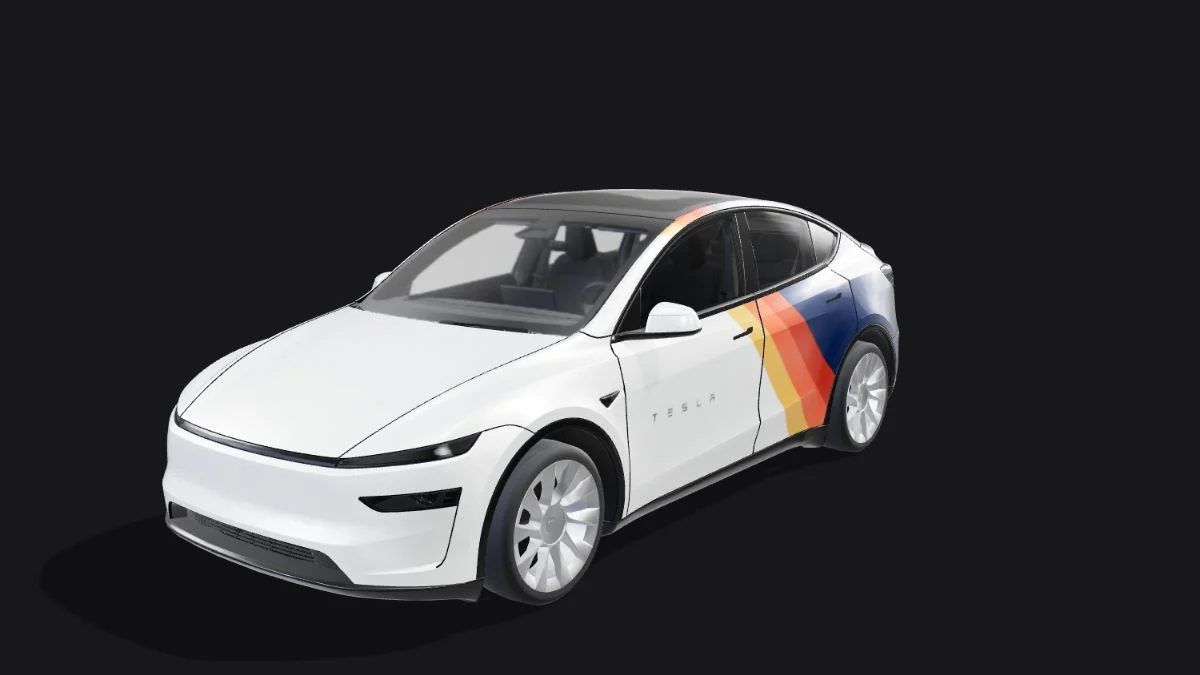
Customizing your Tesla’s 3D visualization in the Toybox Paint Shop is one of the easiest ways to personalize your cockpit and mobile app avatar. Whether you want a matte stealth finish, an iconic racing livery, or a custom anime design, loading a wrap onto your vehicle takes less than two minutes.
Before you begin, make sure you have a valid wrap file ready. You can grab free skins from the TeslaWrapLab Gallery, build your own in our 3D Wrap Editor, or download blank wireframes from our Free Tesla Wrap PNG Templates page.
In 2026, there are two official ways to import custom wraps into your Tesla: Method 1 (Direct Mobile App Upload) and Method 2 (Glovebox USB Drive).
Method 1: Upload Directly from the Tesla Mobile App (Fastest Method)
Tesla’s official custom-wrap instructions support mobile upload with Tesla App v4.59.0 or later, using Creations → Wrap → Upload. Confirm that your vehicle and account expose the feature; the published wrap instructions do not specify a universal vehicle-firmware minimum.
Prerequisites:
- Tesla Mobile App: Version
4.59.0or newer. - Vehicle access: Your vehicle must support custom wraps and be accessible in your Tesla account.
- PNG file: A genuine PNG within the published 1 MB and image-dimension limits.
Step-by-Step Mobile Upload Instructions:
- Save the Wrap PNG to Your Phone: Download your desired wrap
.pngfile from TeslaWrapLab directly to your iPhone Photos / Files app or Android Downloads folder. (Ensure your phone does not auto-convert the PNG to HEIC or WEBP). - Open the Tesla App: Launch the app on your phone and wait for the 3D avatar of your vehicle to load on the home screen.
- Open Creations: In the Tesla app, choose Creations → Wrap → Upload.
- Choose Your PNG: Select the original
.pngfile from your phone. - Transfer the Wrap: Complete the app’s upload flow. Uploading does not itself select the wrap in the vehicle.
- Apply in the Vehicle: On the car touchscreen, open Toybox → Paint Shop → Wraps and choose the transferred design.
Method 2: Upload via Glovebox USB Flash Drive (Classic Offline Method)
If your vehicle is parked in an underground garage without cellular reception, or if you want to store a set of up to 10 USB wraps, the classic USB flash drive method remains rock-solid.
Step 1: Check Your USB Drive Formatting
You can use the exact same USB drive that records your Dashcam and Sentry Mode footage. If you are setting up a secondary drive, ensure it is formatted as:
- exFAT (Recommended for Windows & Mac)
- FAT32 / MS-DOS (FAT)
- ext3 / ext4 (Note: NTFS formatted drives will NOT be read by Tesla).
Step 2: Create the /Wraps Folder at the Root Level
- Plug the USB flash drive into your computer.
- In the root directory (top level, right next to your
TeslaCamandLightShowfolders), create a new folder named exactly:WrapsCRITICAL RULE: The folder name is case-sensitive on Tesla's Linux-based OS. Capital W, lowercase raps. Do not name it
wraps,TeslaWraps, or place it inside theTeslaCamfolder.
Step 3: Copy Your .png Files into /Wraps
Drag and drop your .png files directly into the /Wraps folder. Do not create subfolders inside /Wraps (such as /Wraps/Cybertruck/), as the vehicle's scanner only reads flat files inside the main directory.
Correct USB Directory Structure:
📦 USB_DRIVE (exFAT)
 ┣ 📂 TeslaCam
 ┣ 📂 LightShow
 ┗ 📂 Wraps
    ┣ 📜 gulf_racing_livery.png
    ┣ 📜 matte_military_green.png
    ┗ 📜 cyber_rust_v2.png
Step 4: Plug into the Data USB Port & Apply in Toybox
- Plug the USB drive into the Glovebox USB-A port (on most 2021–2026 models, only the glovebox port supports data transfer; center console USB-C ports are power-only).
- On your Tesla touchscreen, tap the App Launcher (
...) -> Toybox -> Paint Shop. - Switch to the Wraps tab at the top of the Paint Shop window.
- Select your custom filename from the list, watch it wrap around your 3D car in real time, and tap Apply.
Troubleshooting Common Upload Issues
Did you follow the steps above, only to find your wrap missing from the list or rendering with weird colors?
- Wrap not listed in Toybox? Double-check that your USB is plugged into the glovebox data port and that the filename doesn't contain emojis or special symbols.
- Car turns solid black or white? Your PNG was saved with a 16-bit color channel or corrupt alpha transparency.
For a complete diagnostic checklist, read our dedicated guide: Tesla Custom Wrap Not Showing Up? 7 Quick Fixes for Paint Shop & USB Errors.
Frequently Asked Questions (FAQ)
Does unplugging the USB drive delete my active wrap?
Check the behavior on your vehicle after applying the design. Tesla’s public custom-wrap instructions do not promise how long a wrap remains cached after removing a drive. Keep the source PNG so you can transfer it again when needed.
How many custom wraps can I store on my USB drive?
Tesla’s published limit is up to 10 wraps from USB and up to 10 from the mobile app. Each PNG must be no larger than 1 MB.