
TeslaWrapLab Team ·
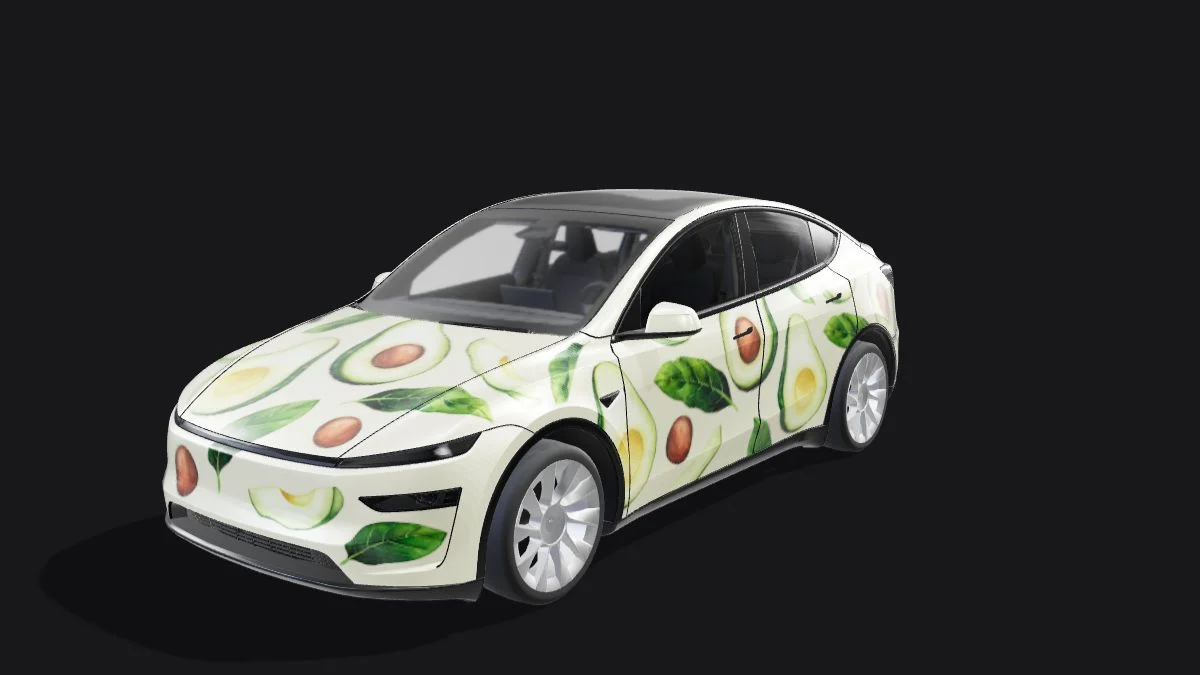
Few things are more annoying than spending an hour crafting a custom Tesla wrap in Photoshop, walking out to your garage with a USB drive, opening Toybox, and seeing... nothing. Or worse: selecting your wrap only to watch your 3D car turn into a pitch-black void.
Tesla’s onboard Linux infotainment system is notoriously strict about file headers, directory structures, and USB hardware ports. If your custom wrap isn't working, run through these 7 proven fixes to get your Paint Shop working immediately.
💡 Start with a known-good file: Use a matching official example from the template library as a comparison. Our editor optimizes PNG exports, but vehicle feature availability and the exact model layout still matter.
Fix 1: Your Car Turns Pitch Black (The 16-Bit / CMYK Color Glitch)
The Symptom: Your filename appears in the Toybox Paint Shop list, you tap it, and the entire 3D car body turns completely flat black or ghostly white. What to Check: Confirm that the file is a genuine PNG. If an advanced editor was used, try an 8-bit RGB export as a compatibility check. A black preview alone does not prove a particular color-profile error. The Solution:
- In Photoshop, go to
Image -> Modeand select RGB Color and 8 Bits/Channel. When usingExport As -> PNG, check the box for Convert to sRGB. - Alternatively, drop your image into the TeslaWrapLab Online Studio and click Export—the browser re-encodes the artwork and optimizes the output PNG.
Fix 2: Using a Power-Only USB-C Port Instead of the Glovebox Data Port
The Symptom: None of your wraps appear in Toybox, or the "Wraps" tab doesn't detect any external media at all. The Cause: On most 2021–2026 Model 3, Model Y, Model S, and Model X vehicles, the center console USB-C ports are wired for charging only—they have no data pins connected to the infotainment computer! The Solution:
- Always plug your USB drive into the USB-A port inside the glovebox (the same port used for Sentry Mode / Dashcam).
- If you want to avoid USB drives altogether, use the wireless method covered in our How to Upload Custom Wraps via the Tesla Mobile App guide.
Fix 3: Incorrect Folder Naming (/Wraps is Case-Sensitive)
The Symptom: Your Dashcam works fine on the same USB stick, so you know the drive is readable, but Paint Shop still shows zero custom wraps.
The Cause: Tesla runs a Linux-based operating system where folder paths are strictly case-sensitive. Naming the folder wraps (lowercase), WRAPS (all caps), or hiding it inside TeslaCam/Wraps will cause the scanner to ignore it.
The Solution:
- Ensure the folder is located at the root level of your drive and named
Wraps(CapitalW, lowercaseraps). - Do not put
.pngfiles inside subfolders like/Wraps/MyDesigns/car.png. All.pngfiles must sit directly inside/Wraps/.
Fix 4: Resolution, File Size or Template Proportion Mismatch
The Symptom: Specific files are missing from the in-car list while others show up fine, or the car displays an "Invalid Image Format" toast message.
The Cause: Tesla publishes a 512x512 to 1024x1024 resolution range and a maximum of 1 MB. Keep your original template proportions: Cybertruck is 1024x768, while most other bundled vehicles use 1024x1024. A 4K export or a forced square Cybertruck layout does not match those source files.
The Solution:
- Keep the original model-specific dimensions; use
1024x768for Cybertruck and1024x1024for the other bundled templates. - Start with our pre-sized Free Tesla Wrap PNG Templates to guarantee exact pixel dimensions.
Fix 5: Renamed .jpg or .webp Files Masquerading as .png
The Symptom: The file looks like a .png on your computer, but the Tesla refuses to read it.
The Cause: If you downloaded a wrap preview from a forum or social media, it may have been compressed as a .webp or .jpg. Simply renaming the filename extension from wrap.jpg to wrap.png in Windows Explorer or Finder does not change the internal file header.
The Solution:
- Open the file in an image converter or upload it to TeslaWrapLab and export a genuine PNG binary file.
Fix 6: Special Characters, Emojis, or Long Filenames
The Symptom: A wrap file causes the Paint Shop UI to freeze or fails to show its preview thumbnail.
The Cause: Filenames longer than 30 characters, or filenames containing emojis, periods (e.g., my.wrap.v1.png), or non-ASCII symbols can break the Toybox file parser.
The Solution:
- Rename your files using simple English letters, numbers, underscores, or hyphens, such as
cyber_camo_01.pngorhighland_gulf.png.
Fix 7: Mac Spotlight Hidden Dot-Files (._filename.png) Cluttering the List
The Symptom: Every wrap shows up twice in your Tesla Paint Shop, and clicking one of the duplicates results in a broken/blank load.
The Cause: When macOS copies files onto an exFAT or FAT32 USB drive, it secretly creates hidden resource fork files starting with ._ (for example, ._anime_wrap.png). Tesla's UI sometimes lists these 4 KB metadata files alongside your real wraps.
The Solution:
- Ignore any filename starting with
._on your car screen, or run the free Mac terminal commanddot_clean /Volumes/YOUR_USB_NAMEbefore ejecting your flash drive.
Summary Troubleshooting Checklist
| Error Symptom on Tesla Screen | Most Likely Culprit | Fast Fix |
|---|---|---|
| No wraps show up at all | Plugged into center console / Folder named wraps | Move USB to Glovebox port; rename folder to Wraps |
| Car turns completely black | Possible encoding, format or template problem | Try a matching official example, then re-export a genuine RGB PNG via TeslaWrapLab |
| Single wrap missing from list | File > 1 MB, incorrect template dimensions, or renamed .webp | Export a genuine PNG at the matching template dimensions, no larger than 1 MB |
| Duplicate broken entries | macOS ._ hidden metadata files | Select the file without ._ prefix or run dot_clean |
| Panels & doors don't line up | Wrong vehicle generation template used | Use dedicated Juniper or Highland templates |